
In short
- Save what you repeat as templates: single sessions and full weeks, with a name that says who they’re for.
- Organize your library by goal, level, days and duration, and keep the ones you use most within reach.
- Treat the template as a starting point and adapt each copy to the client before you publish.
Why work with templates
If you coach 20 or 30 clients, building every plan from scratch eats your evenings. And you rarely need to: most clients fit a handful of structures you already know. Three full-body days for a beginner, an upper/lower split for someone with a base, an easy week to come back from vacation.
A template isn’t a canned plan. It’s the base you’ve already tested, with the exercises, sets and notes you always use. What changes (Diego’s injuries, the equipment Laura has at home, the days Marta can train) you adjust on top.
Session or week: what to save and how to find it
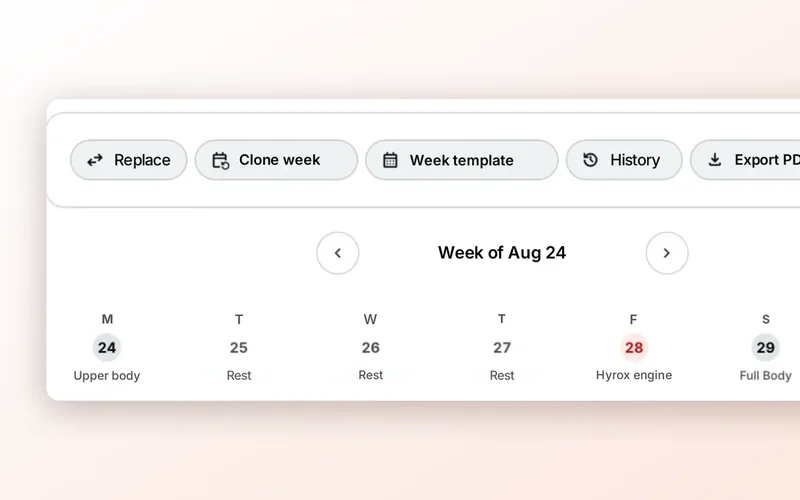
Save two kinds of template. Session templates for pieces you reuse across many plans: “Dumbbell legs, 45 min,” “Core and mobility.” Week templates for complete structures: “Strength, 3 days, beginner.”
Name them by who they’re for, not just what’s in them. Six months from now you’ll have dozens, and what you’ll be looking for is “something for a beginner who trains two days a week.”
In 2T4T, under “Plantillas” (templates) you filter by type (sessions, weeks or favorites) and by goal, level, days per week and duration. You can search by name, tag or exercise, star your favorites and sort the list by “Más usadas” (most used) so the ones that actually work stay on top.
Three ways to create a template
When you click “Nueva plantilla” (new template) you choose a session or a week, and then where it starts from:
- “Desde cero” (from scratch): you build it in the editor, just like a plan.
- From another template: pick one you already have and you get a copy to change. Handy for turning your beginner template into an advanced version.
- From the exercise catalog: select several exercises and click “Crear plantilla de sesión” (create session template). Great when you know which exercises you want and will decide the order later.
Save what already works from the plan
The best templates aren’t designed in a vacuum: they come from sessions that already worked for a client. If the leg session you built for Marta is going well, save it before you forget.
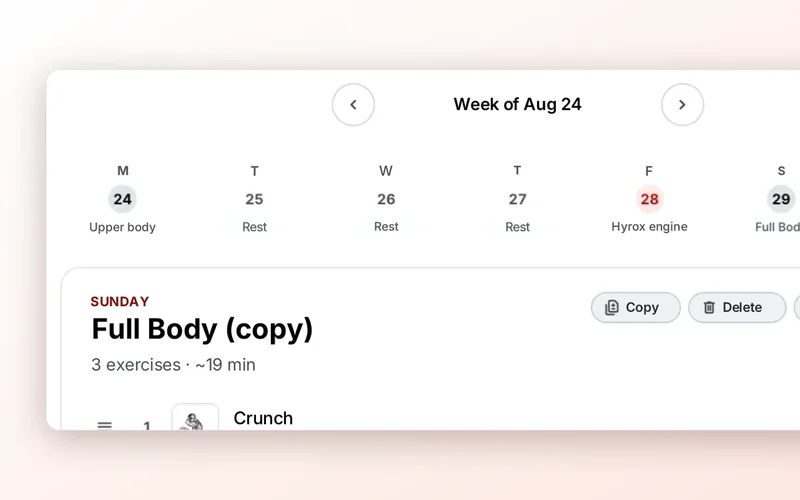
In 2T4T, every session in the plan has “Guardar como plantilla” (save as template). You add a name, description and tags, and if you already have a session template with that exact name, it gets updated instead of creating a new one. That way your template improves with every client and you don’t end up with five near-identical versions.
Assign a template to several clients at once
When you start a group of new clients from the same base, you don’t have to go one by one. But assigning isn’t publishing: each copy still needs a review based on what you know about that person.
In 2T4T, from your templates you click “Asignar a clientes” (assign to clients), choose who gets it and decide what happens to their draft: “Sustituir” (replace: the draft keeps only the template) or “Añadir detrás” (add after: what they had stays and the template goes after it). It never publishes on its own: it lands in each client’s draft and you review it in their training tab.
If any of the clients you picked has an active injury, it tells you before assigning: the template doesn’t account for it, so check the injury warnings in their draft before you publish.
Apply a template from a client’s plan
Sometimes it goes the other way: you’re in Diego’s plan and want to drop in your post-vacation week or a mobility session. The key is seeing the result before you change anything.
In 2T4T, in the plan editor you click “Aplicar plantilla” (apply template), choose a week or session template and decide whether to add it to what’s there or replace the draft. You also pick which sessions go in and on which day. “Ver cómo queda” (preview) shows what gets added, what gets removed and how the week would look, and only then do you apply it. It goes to the draft: your client won’t see it until you publish.