
In short
- Every morning, in this order: what hurts, what’s on today, who has written to you and who has stopped training.
- Deal with pain signals and injury warnings first; everything else can wait an hour.
- Use filters and tags instead of memory, and the ⌘K, ⌘J and ⌘S shortcuts to save clicks.
Look at what changed, not at everyone
The classic mistake with a growing roster is opening client after client “to see how they’re doing.” With 10 clients you can get away with it; with 40, your morning disappears and someone still slips through.
The alternative is to look only at what needs something from you: someone who said it hurts, someone who wrote to you, someone who hasn’t trained in a week, today’s bookings. The rest of your roster is fine as long as none of that changes.
And always in the same order. Pain comes first, because it’s the only thing that can’t wait.
Home: Needs attention, Today and Your week
The 2T4T Home screen is built for that first look.
- Needs attention (“Requiere atención”) gathers unattended pain (picked up in messages or when a workout is logged), plans with injury warnings you haven’t reviewed yet and inactive clients. Once you’ve talked to the client about the pain, mark it as handled (“Atendida”): it clears the alert and sends them nothing. When everything’s fine, it tells you all is in order.
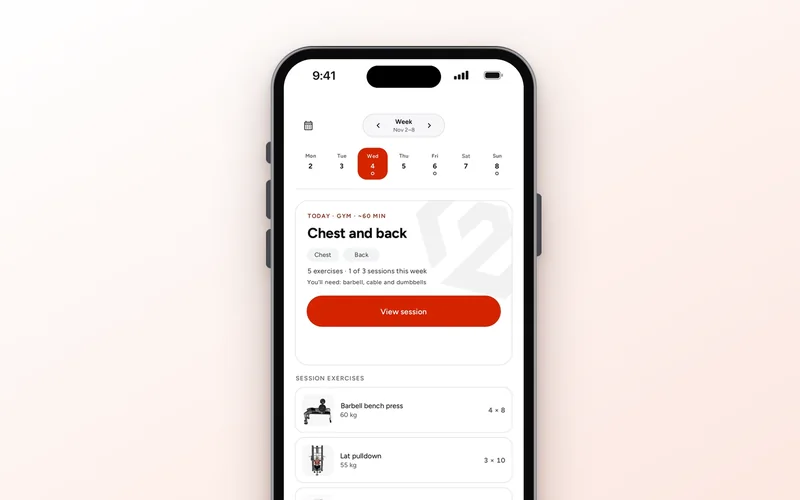
- Today (“Hoy”) shows the day’s bookings and the plan sessions each client has scheduled, with arrows to check the day before or after.
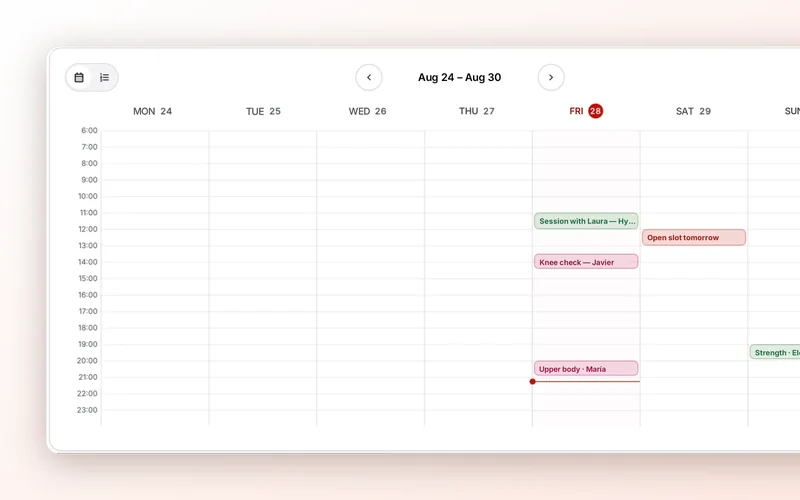
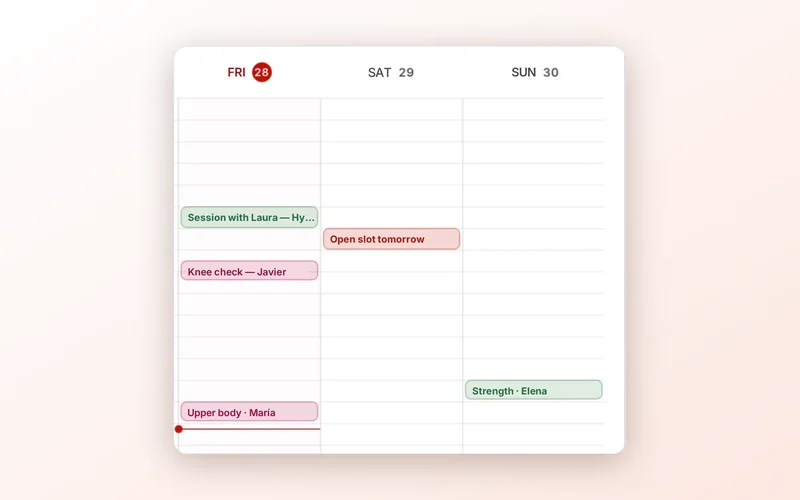
- Your week (“Tu semana”) puts your bookings and your clients’ plan sessions on a calendar (or a list).
Your roster, with filters instead of memory
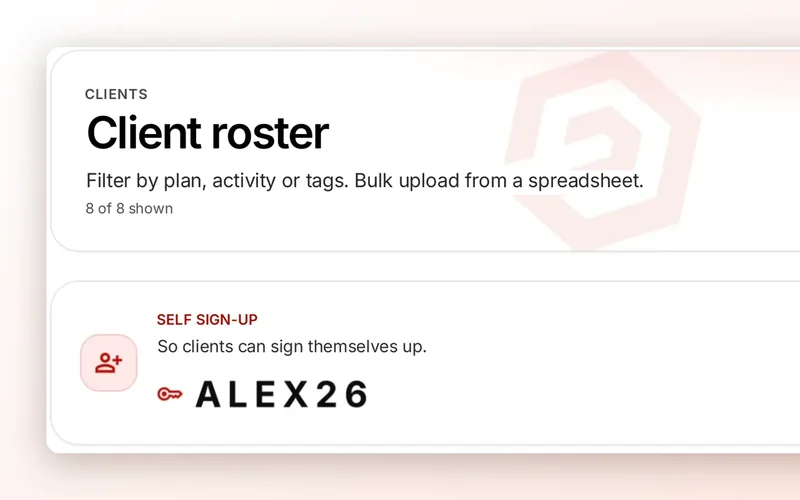
Under Clients you have three filters that beat any eyeball review:
- Plan: with or without a weekly plan. A client with no plan has nothing to do.
- Activity: active, inactive (by default, 7 days or more without logging a session) and “plan not started” (“Plan sin entrenar”): they have a plan but haven’t done a single session yet. That last one is usually a getting-started problem and one message fixes it.
- Tags: your own (“back from injury,” “online,” “Tuesday group”). It shows up as soon as you add the first one.
Search finds clients by name, email or tag, so a well-chosen tag is a shortcut to a whole group.
Chat: unread, pin and mute
In the messages panel, unread conversations sit at the top with how long they’ve been waiting, and unattended pain goes ahead of a regular message. The Unread (“Sin leer”) filter leaves only what’s pending.
- Pin (“Fijar”) keeps up to 3 clients at the top, for example the ones you’re following closely this week.
- Mute (“Silenciar”) takes a client who writes a lot and doesn’t need an instant reply out of your unread count. Their messages are still there.
You do both from the client card inside the chat, and they’re remembered in that browser.
Three shortcuts that save clicks
- ⌘K (Ctrl+K on Windows) opens the command palette: search for a client or an action, like New client, and get there without touching the menu.
- ⌘J opens the chat from any screen.
- ⌘S saves the plan draft while you edit it. Saving doesn’t publish: the client sees nothing until you hit Publish.
A five-minute routine
Here’s what an ordinary morning looks like with 30 clients:
- Minute 1. Needs attention. Marta flagged knee pain at the end of her session: you message her, adjust whatever needs adjusting and mark it as handled. If a plan has an injury warning, you go in and review it.
- Minute 2. Today. Which bookings you have and who has a session. If Diego has legs today and told you yesterday he was sore, you see it now, not at lunchtime.
- Minute 3. ⌘J and Unread. Answer the quick ones right away. Pin the ones that need thought for later.
- Minute 4. Roster, Activity. Check inactive and “plan not started” and send each one a short message.
- Minute 5. This week. A glance at Your week and, if anyone has no plan, put it on today’s list.
“Hi Laura, I saw you haven’t tried the plan yet. Want me to help you do the first session today or tomorrow?”
On days when everything’s in order, you’re done in two minutes.