
In short
- Upload up to 5 files from the same plan or history (PDF, PNG, JPG or CSV) and AI reads them together.
- You review every exercise, fix sets, reps and weights, and match anything it can’t find to the catalog.
- The plan goes to the draft and is never published on its own; anything you don’t confirm expires after 48 hours.
Why bringing the past over is worth it
When Diego comes from another app or another trainer, his last few months are gold: which exercises he did, with what weights and how many times a week. Without that, you program blind for the first few weeks and it takes longer to see whether he’s progressing.
And the plan you’d already built for him in a PDF or a spreadsheet doesn’t need rebuilding: what works moves over as is, and you adjust it later.
Plan or history: two different things
Before uploading anything, be clear about what each file is:
- Upcoming plan: what the client should do. Their current routine, the program you sent as a PDF.
- Completed history: workouts they’ve already done. The Hevy or Strong export, screenshots of their log, your notebook.
Don’t mix them in the same upload. If Laura sends you her routine and her last three months, that’s two imports.
How it works in 2T4T
There are two ways in from the client’s profile:
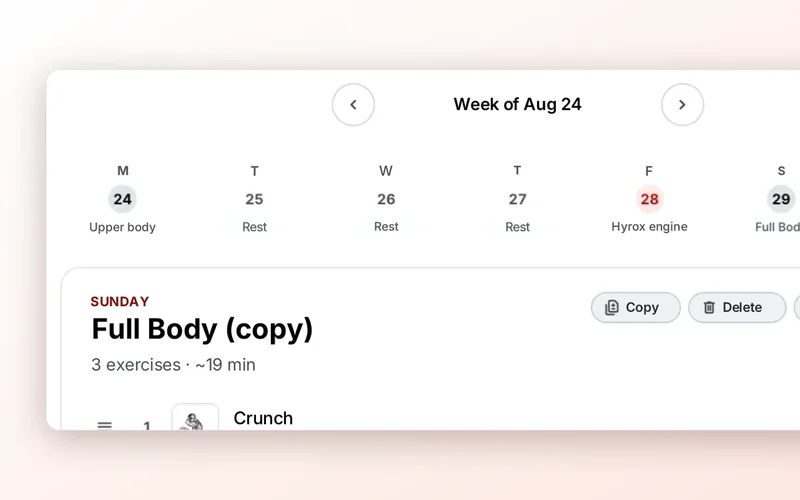
- Import from another app (“Importar de otra app”), in the More menu of the plan editor. You choose upcoming plan or completed history.
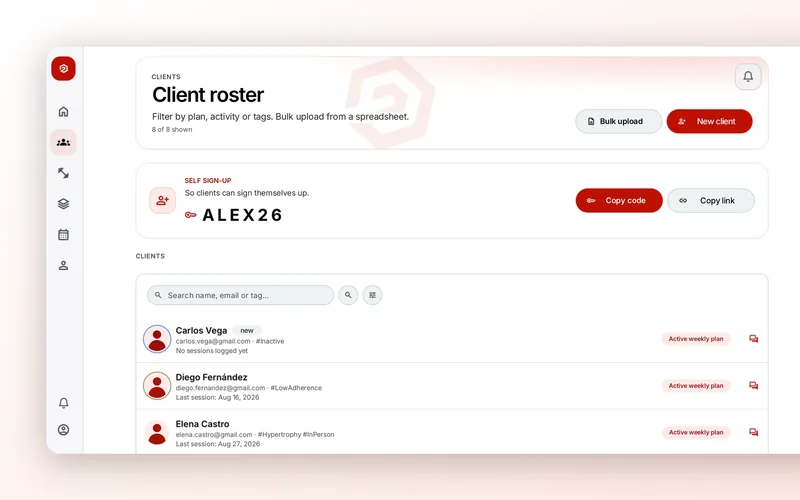
- Upload history (“Subir historial”), in the profile’s side panel (Hevy, Strong, photos, CSV…). It goes straight to history.
Choose your files and upload up to 5 PDFs, photos (PNG or JPG) or CSVs from the same plan or history. They’re read together, in a single extraction. The limits:
- 5 files at most.
- 8 MB per file and 24 MB in total.
- PDF, PNG, JPG or CSV. XLSX isn’t accepted: if it’s in Excel, save it as CSV or export it to PDF.
While the files are being read, AI pulls out every session and every exercise with its sets, reps and weights. If the client is new, From a file (“Desde un archivo”) under Clients does the same with their intake form and also brings in their plan and history.
The review, row by row
Before anything is saved, you see what it detected: how many exercises and how many are still unmatched in the catalog. Each row has its sets, reps and weight (kg) fields, and you can fix them right there.
Each exercise shows up as in the catalog or as not found, with a link to search the catalog. Sometimes it suggests a few options, and if not, you search yourself. Example: Marta wrote down “DB Bulgarians”; you match it to the Bulgarian split squat in the catalog and you’re done.
You can’t confirm until every row is resolved. That’s on purpose: it means every exercise has its video and the client’s progress can be tracked.
Finally you hit Add to draft (for a plan) or Save history (for history). Or Discard, if it was the wrong file.
Nothing reaches your client until you decide
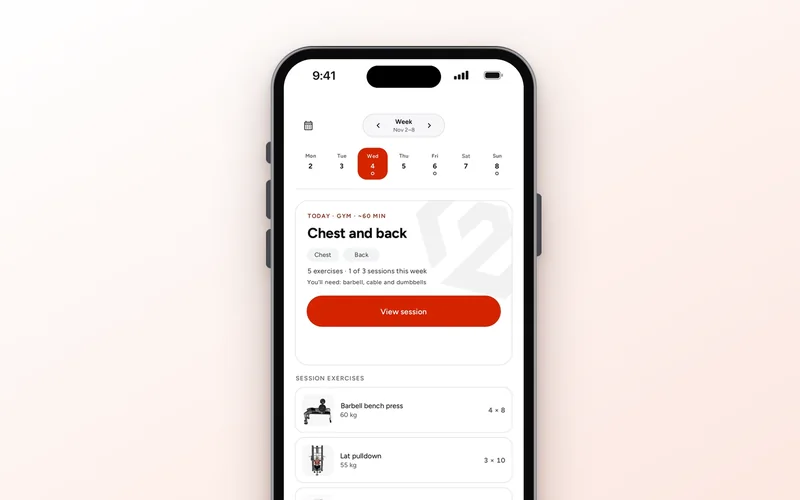
- The imported plan goes to the draft and is never published on its own. You go over it calmly, adjust it and hit Publish whenever you’re ready. Until then, the client sees nothing.
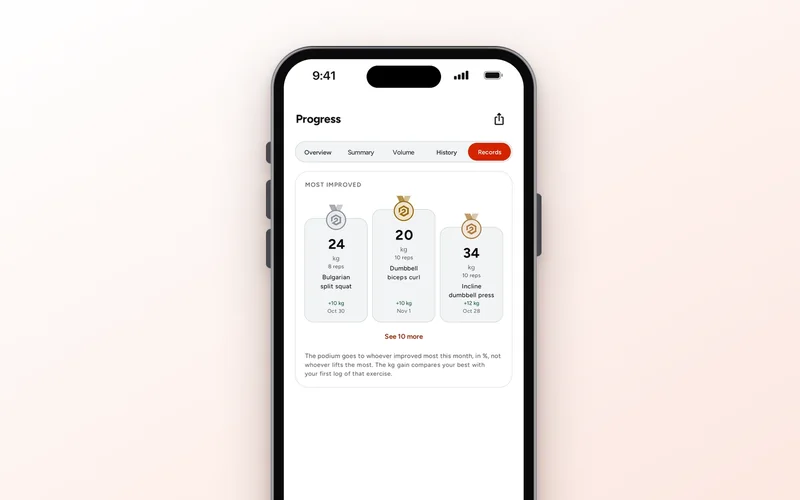
- History is saved to their Progress, not to the plan: it’s for you, to see where they’re coming from.
- Anything you don’t review expires. An unconfirmed upload is deleted after 48 hours, and the original file is deleted when you confirm or discard.
Tips so the photo or PDF reads well
- If the app exports CSV, use the CSV. It’s the cleanest option: nothing to interpret.
- Straight, well-lit, complete photos. No shadows, no table cut off at the edge and no fingers in the way.
- One session or one week per screenshot beats a tiny screen with everything on it.
- A PDF with real text, not a crooked scan. If it’s a photo of a sheet, the numbers need to be legible.
- Recognizable exercise names. “Bench press” matches on its own; “the one Pablo showed me” doesn’t.
- Files from the same plan or history in each upload. Mix two clients or two programs and the review will take you longer.