
In short
- Always compare what you asked for with what they did: weight, reps and how hard it felt.
- End-of-session feelings, pain and the reason behind each skipped session matter as much as the numbers.
- Set a rule for each signal and review the log before you build the next week.
What a set-by-set log tells you
A log is only useful if you can compare it with what you prescribed. If you gave Marta 3 × 8 on the bench press at 40 kg and RIR 2, and she logs 8, 8 and 6 with the last one marked as max, the weight is too heavy for today. If she gets all 8 every set and finds them easy, she’s ready for more.
The less clients have to type, the more they log and the more reliable the data.
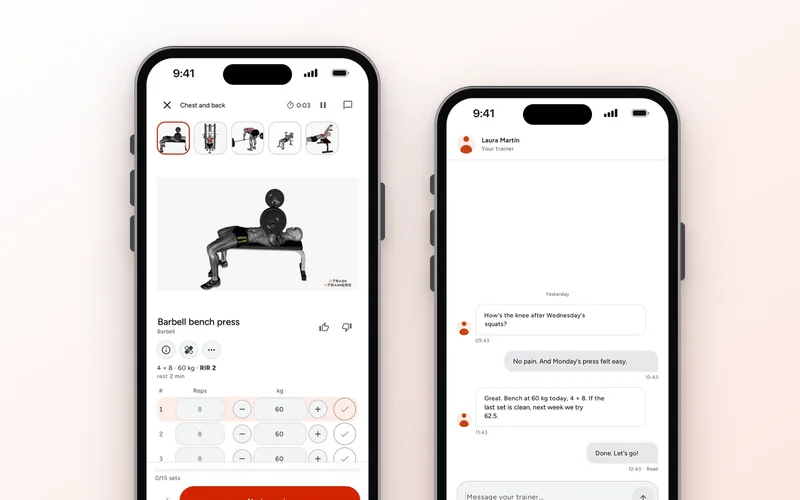
In 2T4T the weight you prescribed is already filled in on every set: your client only changes it if they used something else. If you didn’t set a weight, the app asks them to pick one they’re comfortable with and log it, and reminds them what they did last time. After each set they can mark how it felt, if they want: “Easy”, “Moderate”, “Hard” or “Max”. In the web app you see it as RPE next to the reps and weight for each set.
And if there’s no signal at the gym, no problem: the session is saved on the phone and sent to you automatically once they’re back online.
The 👍/👎: is the exercise working for them?
An exercise a client can’t stand ends up skipped or done badly. Knowing early what they like and what they don’t saves you weeks of fighting their adherence.
In the app, each exercise asks “How is this exercise working for you?” with a 👍 or a 👎. It isn’t a separate message: it arrives with the session log. After a 👎, the client can tap “Tell your trainer”, which opens the chat with a sentence already started so they can explain why in their own words.
In the web app you see it in that session’s details, inside the session history (“Historial de sesiones”), grouped into likes and dislikes.
What to do. A single 👎: ask what’s going on (technique, discomfort, equipment). Two in a row on the same exercise: swap it. With the replace exercise option you change it across the whole plan at once.
The end-of-session questions
When they finish, the app asks “How was the session?” with three things they must answer to save:
- Overall feeling: from “Very bad” to “Excellent”.
- Perceived load: “Very light”, “Right on”, “At the limit” or “Too much”.
- Duration: “Shorter”, “As planned” or “Longer”.
Plus three optional ones: session effort from 1 to 10, “Any pain?” with the body area, and “Notes for your trainer”.
What to do. “Too much” and “Longer” in the same session: there’s too much volume, so drop a set or an exercise. “Very light” two weeks running: go up. If they report pain in an area, 2T4T treats it as a pain signal: it creates an injury to confirm and shows it under “Needs attention” on your home screen. With strict mode on, a pending injury won’t let you publish the plan until you review it. And always answer their notes: it’s how you keep them writing.
A skipped session is data too
Counting skipped sessions doesn’t help much if you don’t know why. Diego might skip Thursday for work three weeks in a row; the problem is Thursday, not Diego.
In the app, “Skip session” requires a reason and, optionally, “Anything else for your trainer”. There are six reasons, and each one calls for a different response:
- Accumulated fatigue: consider a deload week.
- Illness or feeling unwell: when they’re back, don’t make up for everything at once.
- Travel or commitment: move the session to a free day or prepare a short version.
- Injury or pain: the app offers “Log the injury” so you have it on their profile. Adapt the plan before the next session.
- Not enough time: fewer exercises, same intensity.
- I forgot: agree on fixed days and times with them.
If they finish a session partway, what they did is saved and you see it as partly done. That’s information too: maybe the session is longer than their day allows.
Where you see it on the web and how to review it
Set aside ten minutes per client before building their week. In each client’s Progress tab you have:
- Session history, by week: every session with its sets, weights, reps and RPE, how it felt, the notes, and skipped sessions flagged as such.
- Progress by exercise: the curve for every exercise with at least two logs of external weight.
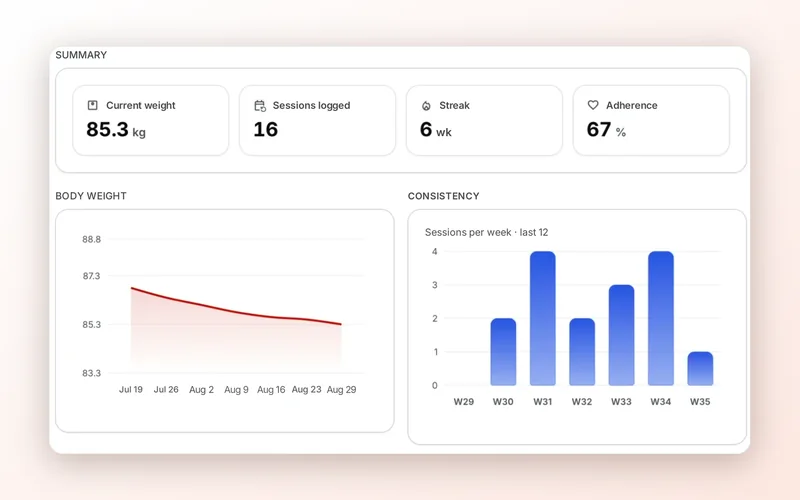
- Adherence for the week and consistency over the last 12 weeks.
In the plan, each session shows whether it’s done (with the time), skipped (with the reason) or pending, and “Ver registro” (view log) shows what they did set by set without leaving the plan.
If you use automatic weight progression, it only increases the load when the client hit the sets, reps and RIR. You see it when you publish and you can choose not to apply it.